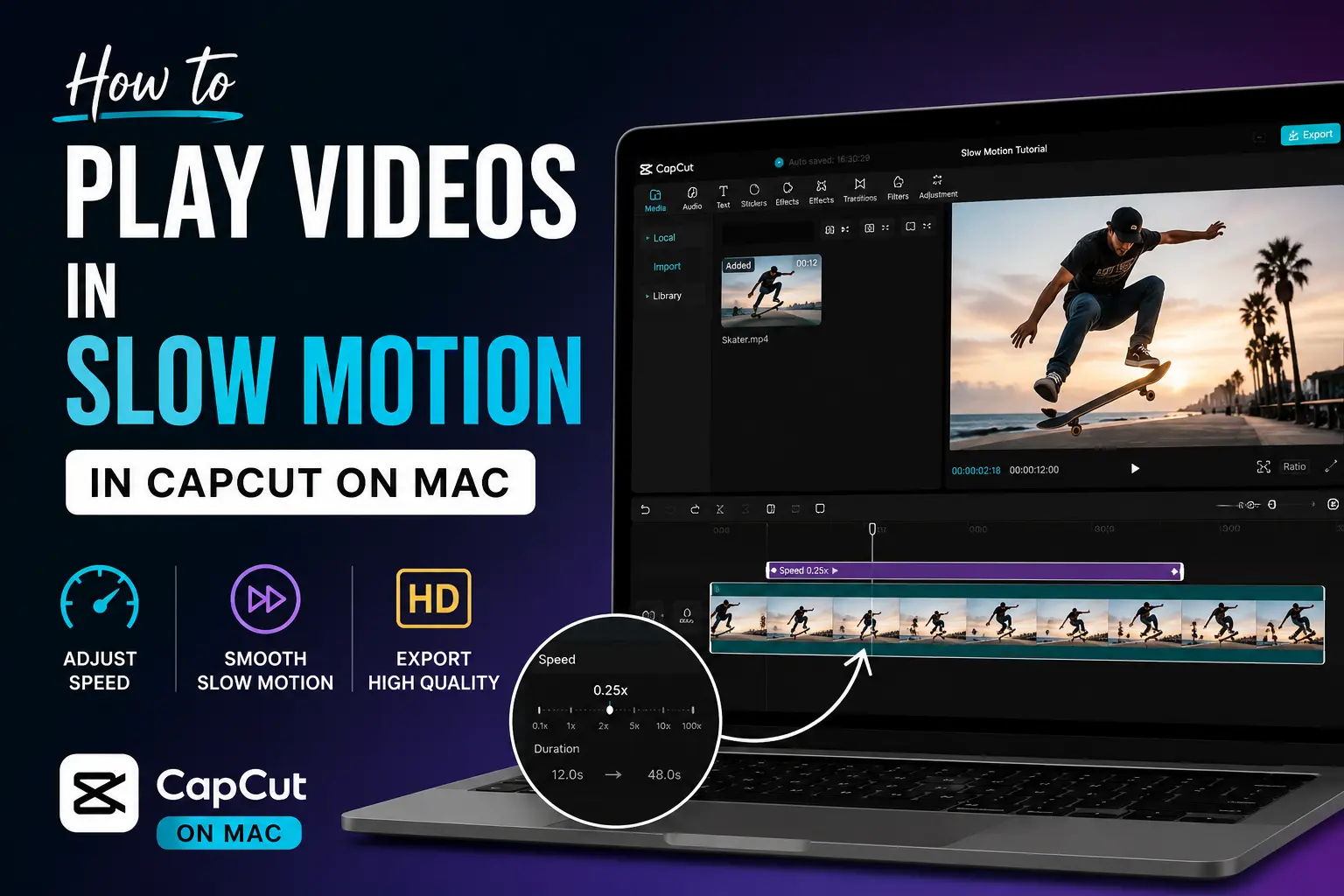
You can easily play videos in slow motion in CapCut on Mac using the built in Speed tool. Follow the steps below to create smooth, high quality slow motion effects in just a few clicks.
🎬 Steps to Create Slow Motion Videos in CapCut on Mac
Slowing down a video in CapCut on Mac takes just a few clicks using the built in Speed tool. Follow these simple steps to create smooth, cinematic slow motion effects with ease..
📂 Open Your Project
Launch CapCut on your Mac and open an existing project or create a new one. If you’re starting from scratch, click New Project.
📥 Import Your Video
Click Import and choose the video you want to edit from your Mac. Then, drag the video onto the timeline.
🎞️ Select the Video Clip
Click the clip in the timeline to highlight it. This enables the editing options for that specific video.
⚡ Open the Speed Tool
With the clip selected, click Speed from the editing panel. CapCut will display the available speed controls.
🐢 Reduce the Playback Speed
Move the speed slider to the left or choose a lower speed, such as 0.5x or 0.25x, to create a slow motion effect. Preview the result and adjust the speed until it looks natural.
▶️ Preview the Slow Motion Effect
Play the video in the preview window to check the smoothness of the slow motion effect. Make any necessary speed adjustments before exporting.
📤 Export Your Video
Once you’re satisfied with the result, click Export, choose your preferred resolution and frame rate, then save the slow motion video to your Mac.
⚙️ Before You Slow Down a Video
Before creating a slow motion video in CapCut on Mac, take a few minutes to prepare your project. These simple steps can help you achieve smoother playback and better video quality.
🔄 Update CapCut
Make sure you’re using the latest version of CapCut. Updates often include performance improvements, bug fixes, and new editing features.
🎥 Use a High Frame Rate Video
For the smoothest slow motion effect, use footage recorded at 60 FPS or higher. Videos with a higher frame rate usually produce more natural looking slow motion.
💾 Save Your Original Project
Keep a copy of your original project before making major edits. This allows you to restore the original version if needed.
⚖️ Know the Difference Between Normal Speed and Slow Motion
Reducing the playback speed makes your video play more slowly and increases its duration. The lower the speed, the longer the clip will become, so choose a setting that matches the effect you want to create.
📝 Steps to Play Videos in Slow Motion in CapCut on Mac
Follow these simple steps to create a smooth slow motion effect in CapCut on your Mac.
1️⃣ Create or Open a Project
Launch CapCut and open an existing project or click New Project to start editing a new video.
2️⃣ Add Your Video to the Timeline
Import your video and drag it onto the timeline. Click the clip to select it before making any edits.
3️⃣ Click the Speed Option
In the editing panel, select Speed to access the playback speed controls for the selected clip.
4️⃣ Drag the Speed Slider
Move the slider to the left to slow down the video. You can also choose preset speeds like 0.5x or 0.25x for a stronger slow motion effect.
5️⃣ Fine Tune the Playback Speed
Adjust the speed until the video looks smooth and matches your desired effect. Avoid reducing the speed too much if your footage has a low frame rate.
6️⃣ Preview the Result
Play the video in the preview window to check the slow motion effect. Make any final adjustments before exporting.
7️⃣ Export the Video
Click Export, choose your preferred resolution and frame rate, then save the finished slow motion video to your Mac.
✂️ How to Slow Only Part of a Video?
You don’t have to slow down the entire video. CapCut lets you apply a slow motion effect to a specific section, making key moments stand out while keeping the rest of the video at normal speed.
✂️ Split the Clip
Move the playhead to the point where you want the slow motion to begin, then split the clip. Repeat the process where you want the effect to end.
🐢 Apply Slow Motion to One Section
Select the split clip, open the Speed tool, and reduce the playback speed to create the desired slow motion effect.
🔄 Smooth the Transition
Preview the edited section to ensure the transition between normal speed and slow motion looks natural. Adjust the speed if needed for a smoother result.
▶️ Preview Before Exporting
Watch the entire video one final time to check the timing and playback. Once you’re satisfied with the result, export your video in your preferred quality.
💡 Tips for Smooth Slow Motion Videos
Creating smooth slow motion videos isn’t just about reducing the playback speed. These tips will help you achieve better results in CapCut on Mac.
🎥 Record at 60 FPS or Higher
Videos recorded at 60 FPS or 120 FPS produce smoother slow motion effects because they contain more frames to work with.
⚖️ Avoid Excessive Slowdown
Slowing a video too much can make it appear choppy, especially if it was recorded at a lower frame rate. Use moderate speed settings for the best balance between smoothness and quality.
📤 Use High Export Quality
Export your video using a high resolution and frame rate to preserve detail and improve playback quality on different devices.
▶️ Preview Before Exporting
Always preview your edited video to check for timing issues, choppy playback, or unwanted transitions before saving the final version.
🔄 Keep CapCut Updated
Using the latest version of CapCut ensures you have access to performance improvements, bug fixes, and the newest editing features for a smoother editing experience.
🛠️ Common Slow Motion Problems and Fixes
If your slow motion video doesn’t look as expected, don’t worry. Here are some common issues and simple solutions to help you create smoother results in CapCut on Mac.
🎞️ Slow Motion Looks Choppy
This usually happens when the original video was recorded at a low frame rate. For smoother slow motion, use footage recorded at 60 FPS or higher and avoid reducing the speed too much.
❄️ Video Freezes During Playback
Playback may stutter if your Mac is running multiple applications or the project is too large. Close unnecessary programs and preview the video again.
📤 Exported Video Isn’t Smooth
Check your export settings and choose a higher resolution and frame rate if available. This helps maintain better video quality during playback.
⚙️ Speed Option Is Missing
Make sure you’ve selected the video clip on the timeline. If the option still doesn’t appear, update CapCut to the latest version and reopen your project.
🚫 CapCut Crashes While Editing
Restart CapCut and your Mac, then reopen the project. If the issue continues, update the app and ensure your Mac meets the recommended system requirements.
🎯 Conclusion
Slow motion in CapCut on Mac comes down to one simple tool: Speed. Shoot your footage at a high frame rate, drop your speed below 1x, and CapCut instantly turns it smooth and cinematic. No plugins, no complicated steps just a few clicks inside the app.
This effect works great for action shots, sports highlights, and dramatic transitions that need extra impact. The higher your original frame rate, the smoother your final slow motion clip will look, so always shoot at 60fps or above when possible.
Once you get comfortable with the Speed tool, try combining it with curve adjustments for more dynamic, natural looking motion in your edits. 🚀
❓ Frequently Asked Questions
Find quick answers to the most common questions about creating slow motion videos in CapCut on Mac. These FAQs cover speed settings, editing tips, and troubleshooting solutions.
Can I make any video slow motion in CapCut on Mac?
Yes. You can slow down almost any video using the Speed tool. However, videos recorded at higher frame rates produce smoother slow motion effects.
What is the best speed for slow motion?
For most videos, 0.5x creates a smooth and natural effect. You can use 0.25x for more dramatic slow motion if the original footage has a high frame rate.
Why does my slow motion video look choppy?
Choppy playback usually occurs when the original video was recorded at a low frame rate or the speed is reduced too much.
Can I slow down only one part of a video?
Yes. Split the video into separate clips and apply the slow motion effect only to the section you want to highlight.
Does slowing down a video reduce quality?
Not necessarily. Exporting your video in a high resolution and using high frame rate footage helps maintain better quality.
Can I edit slow motion videos for free in CapCut?
Yes. The free version of CapCut includes the Speed tool, allowing you to create slow motion videos without a subscription.
How do I make slow motion look smoother?
Use footage recorded at 60 FPS or higher, avoid excessive slowdown, and preview your edits before exporting.
Which frame rate is best for slow motion videos?
A frame rate of 60 FPS or 120 FPS is ideal for creating smooth and professional looking slow motion effects.