If your CapCut project contains Pro features, you’ll need to remove or replace those premium assets before you can export the video without a Pro subscription. This usually involves identifying Pro effects, filters, transitions, fonts, stickers, templates, or other premium tools and replacing them with free alternatives. In this guide, you’ll learn how to remove CapCut Pro features from your video while maintaining a polished final result.
💎 What Are CapCut Pro Features?
Before removing premium assets, it’s important to understand what CapCut Pro features are and how they affect your project. Knowing how to identify these features will help you avoid export issues and choose suitable free alternatives.
⭐ What Is CapCut Pro?
CapCut Pro is the premium version of CapCut that unlocks additional editing tools and creative assets beyond what’s available in the free version.
Depending on your device, region, and CapCut version, a Pro subscription may provide access to:
- Premium video effects
- Exclusive filters
- Advanced transitions
- Premium fonts
- Stickers and animations
- AI powered editing tools
- Premium templates
- Additional enhancement features
These features are designed to expand your editing options, but they require an active Pro subscription to use without restrictions.
🎬 Which Features Require a Pro Subscription?
Not every editing tool in CapCut is paid. Many essential features remain free, while premium content is clearly marked.
Common CapCut Pro features include:
- Video effects with a Pro label
- Premium filters
- Exclusive transitions
- Premium fonts
- Paid stickers
- Selected templates
- AI editing features
- Advanced enhancement tools
The exact list of Pro assets can change over time as CapCut updates its library.
🔍 How to Identify Pro Assets
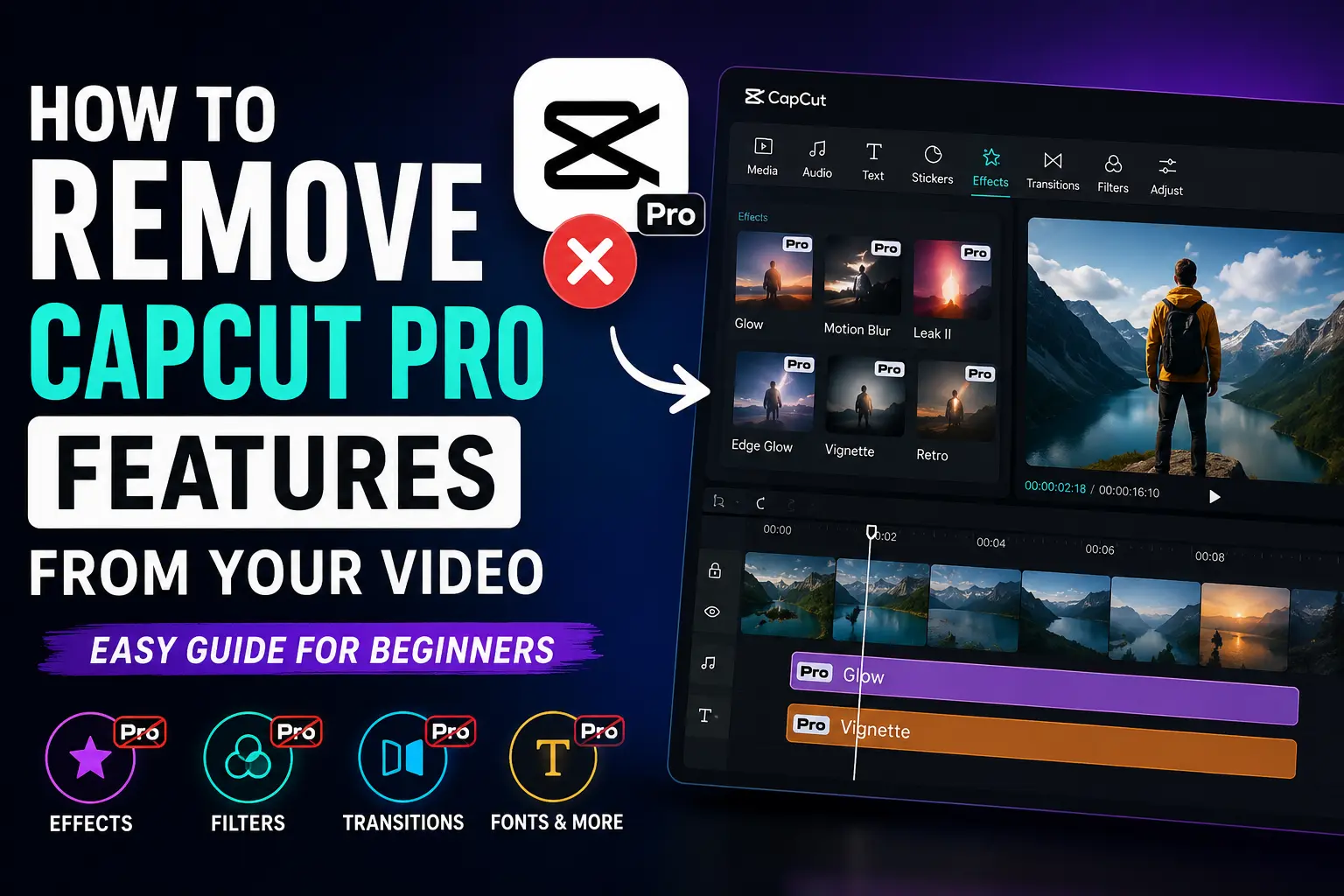
CapCut makes it relatively easy to recognize premium content. Most paid assets display a Pro badge or icon in the asset library.
When reviewing your project, check for:
- Effects marked Pro
- Filters labeled Pro
- Transitions with a premium badge
- Fonts requiring a subscription
- Stickers and templates marked as premium
If your project includes one or more of these assets, CapCut may display a subscription prompt or prevent certain exports until the premium elements are removed or replaced.
💻 Before You Remove Pro Features
Before deleting any CapCut Pro features, take a few minutes to prepare your project. This helps prevent accidental changes, makes it easier to identify premium assets, and ensures a smoother editing process.
💾 Save a Copy of Your Project
Create a duplicate of your project before making any edits.
This gives you a backup in case you want to restore the original version later or compare the free and Pro versions side by side.
🔄 Update CapCut to the Latest Version
Open the latest version of CapCut before editing your project.
Software updates may change the location of tools, improve asset management, and make it easier to identify Pro content. Depending on your platform, the interface may vary slightly between Windows, macOS, Android, and iPhone.
🎞️ Review Your Timeline
Go through your timeline from beginning to end and look for any premium elements.
Pay close attention to:
- Effects
- Filters
- Transitions
- Text styles
- Stickers
- Templates
- Audio (if applicable)
Checking the entire timeline helps ensure no Pro assets are overlooked before exporting.
🔍 Locate Every Pro Asset
Most premium assets are marked with a Pro badge in the editing panel or asset library.
Click on each effect, transition, filter, or sticker you’ve used to confirm whether it requires a subscription.
Finding every Pro asset before making changes saves time and reduces the chance of missing one later.
⚠️ Understand Export Restrictions
If your project still contains premium assets, CapCut may display a subscription prompt or limit access to those features during export.
Before exporting, make sure:
- All Pro assets have been removed or replaced.
- No premium effects remain on the timeline.
- The project previews correctly after your edits.
Once you’ve completed these checks, you’re ready to remove CapCut Pro features and replace them with free alternatives where needed.
🛠️ How to Remove CapCut Pro Features from Your Video
Removing CapCut Pro features is a straightforward process. The goal is to identify every premium asset in your project, replace or remove it, and verify that no Pro elements remain before exporting your video.
📂 Step 1: Open Your Project
Launch CapCut and open the project that contains the premium features.
Before making any changes, save a copy of the project so you can restore the original version if needed.
🔍 Step 2: Identify Premium Elements
Review your project from start to finish and look for assets marked with a Pro badge.
Common premium elements include:
- Effects
- Filters
- Transitions
- Fonts
- Stickers
- Templates
- AI powered editing tools
Select each item to confirm whether it requires a Pro subscription.
🖱️ Step 3: Select the Pro Feature
Click the premium asset on the timeline or in the editing panel.
Depending on the type of asset, you may need to select:
- The video clip with the effect applied
- The transition between two clips
- A text layer using a premium font
- A sticker or template
- A filter applied to the clip
Make sure you’re editing the correct element before removing it.
❌ Step 4: Delete the Premium Asset
Remove the selected Pro feature from your project.
For example:
- Delete a premium effect.
- Remove a Pro transition.
- Change a premium font.
- Delete a paid sticker.
- Remove a premium filter.
Repeat the process until you’ve reviewed every section of your timeline.
🔄 Step 5: Replace It with a Free Alternative
After removing a premium asset, replace it with a free option if you want to maintain a similar look.
CapCut offers many free:
- Effects
- Filters
- Transitions
- Fonts
- Stickers
- Animations
Choose an alternative that matches your editing style while keeping the project free of premium content.
▶️ Step 6: Preview the Project
Play the entire video before exporting.
Check that:
- No premium assets remain.
- The video plays smoothly.
- Transitions look natural.
- Text displays correctly.
- Effects appear as expected.
If something looks different after removing a Pro feature, adjust the free replacement until you’re satisfied with the result.
📤 Step 7: Export the Video
Once all premium assets have been removed or replaced, export your project using your preferred resolution and frame rate.
If CapCut still displays a subscription prompt, review the timeline again to ensure no Pro elements remain. Even a single premium asset can trigger the warning in supported versions of the app.
🔄 How to Replace Pro Features with Free Alternatives
Removing a CapCut Pro asset doesn’t mean you have to sacrifice your video’s quality. CapCut includes many free tools and effects that can help you achieve a similar look without requiring a Pro subscription.
🎨 Replace Pro Effects
If your project uses a premium effect, browse the free effects library for a similar style.
Many free effects can create:
- Glow effects
- Vintage looks
- Motion blur
- Color enhancements
- Basic visual effects
Preview different options until you find one that fits your video.
🌈 Replace Premium Filters
Premium filters can often be replaced by combining free filters with manual color adjustments.
You can fine tune settings such as:
- Brightness
- Contrast
- Saturation
- Highlights
- Shadows
Small adjustments can produce results that are similar to many premium filters.
🎬 Replace Paid Transitions
If a premium transition isn’t available, use one of CapCut’s free transition effects instead.
Popular free choices include:
- Fade
- Dissolve
- Slide
- Zoom
- Push
Simple transitions often look cleaner and more professional than overly complex ones.
🔤 Replace Premium Fonts
If your text uses a Pro font, switch to one of CapCut’s free fonts with a similar style.
When choosing a replacement, consider:
- Readability
- Font weight
- Letter spacing
- Overall design consistency
Keeping the same text size and color can help preserve the original look.
😊 Replace Premium Stickers
Premium stickers can usually be replaced with free stickers or your own graphics.
You can also import:
- PNG images
- Logos
- Icons
- Custom illustrations
This gives you more flexibility while keeping your project free of premium assets.
📄 Replace Premium Templates
If your project was created from a premium template, you may need to rebuild parts of the design using free elements.
Reuse:
- Free transitions
- Text animations
- Effects
- Stickers
- Audio
- Backgrounds
Although it may take a little more time, you’ll have full control over the final project.
🛠️ Use Built In Free Editing Tools
CapCut’s free version includes many editing features that don’t require a subscription.
For example, you can use:
- Basic animations
- Speed controls
- Cropping and trimming
- Color adjustments
- Opacity controls
- Keyframes
- Blend Modes (on supported versions)
Many creators achieve professional looking videos using these free tools alone.
If you want to create cinematic lighting and creative overlay effects without relying on premium effects, learning how to use Blend Modes in CapCut PC is a great alternative that can significantly improve your edits while keeping your project free of Pro assets.
⚠️ Common Problems When Removing Pro Features
Removing CapCut Pro features is usually simple, but you may still encounter a few issues during editing or export. Here are the most common problems and how to fix them.
🚫 CapCut Still Shows a Pro Warning
If CapCut continues to ask you to upgrade, one or more premium assets may still be in your project.
Check your timeline for:
- Pro effects
- Premium filters
- Paid transitions
- Pro fonts
- Stickers
- Templates
Review each clip carefully, as even a single Pro asset can trigger the warning.
🔍 You Can’t Find the Pro Asset
Sometimes it’s difficult to identify which element requires a subscription.
To locate it:
- Review each clip individually.
- Select every effect and transition.
- Check text layers for premium fonts.
- Inspect stickers and templates for a Pro badge.
Working through the timeline section by section makes it easier to find the remaining premium asset.
🎨 The Video Looks Different After Removing a Pro Feature
Replacing a premium effect or filter may change the appearance of your video.
To restore a similar look:
- Try another free effect.
- Adjust brightness and contrast.
- Fine tune colors manually.
- Experiment with free transitions or animations.
Small adjustments can often produce results that closely match the original style.
🔤 Fonts or Effects Are Missing
If a font or effect disappears after removal, it was likely exclusive to CapCut Pro.
Replace it with a free alternative that offers a similar appearance or functionality. CapCut’s free library includes many fonts, effects, and animations suitable for most editing projects.
📤 The Project Won’t Export
If export fails after removing Pro features, check whether another premium asset is still present.
Also verify that:
- All edits have been saved.
- Your project has finished loading.
- CapCut is updated to the latest version.
- Your device has enough storage space for the exported video.
💳 CapCut Still Requests a Subscription
In some cases, CapCut may continue displaying a subscription prompt because the project was originally created with premium assets.
Try the following:
- Save your changes.
- Close and reopen the project.
- Confirm that every Pro asset has been removed.
- Attempt the export again.
If the prompt remains, review the timeline once more to ensure no premium elements were missed.
✅ Quick Troubleshooting Checklist
Before exporting your video, use this checklist to avoid common issues.
| Problem | Solution |
|---|---|
| Pro warning still appears | Remove any remaining premium assets. |
| Can’t find the Pro feature | Review the timeline clip by clip. |
| Video looks different | Replace the asset and adjust colors manually. |
| Missing font or effect | Choose a similar free alternative. |
| Export won’t complete | Update CapCut and check for remaining Pro assets. |
| Subscription prompt remains | Save, reopen the project, and review the timeline again. |
Most problems can be resolved by carefully reviewing your project and replacing every premium asset with a free alternative before exporting.
💡 Tips to Avoid Using Pro Features
A few simple habits can help you avoid CapCut Pro assets from the start. This saves time, prevents export interruptions, and lets you complete projects using only the free version of CapCut.
🆓 Filter for Free Assets
When browsing effects, filters, stickers, or transitions, look for items that don’t have a Pro badge.
Using free assets from the beginning reduces the need to replace premium elements later.
👀 Check for the Pro Badge Before Adding Assets
Before applying any effect or template, check whether it’s marked as Pro.
Spending a few seconds verifying the asset can save you time during export.
⭐ Save Your Favorite Free Assets
If you frequently use the same free effects, fonts, or transitions, save them as favorites.
Building a collection of trusted free assets makes future editing faster and keeps your projects consistent.
📂 Organize Your Editing Workflow
Keeping your timeline organized makes it easier to identify and replace any premium elements if needed.
You can organize your project by:
- Naming important clips
- Grouping similar edits
- Using separate tracks for overlays and text
- Reviewing edits after major changes
▶️ Preview Before Exporting
Always watch your video from beginning to end before exporting.
During the preview, confirm that:
- No Pro warnings appear.
- All effects display correctly.
- Text and transitions look natural.
- Free replacements match your editing style.
A final review helps you catch any overlooked premium assets.
🔄 Start with Free Templates When Possible
If you’re creating a new project, consider using a free template instead of a premium one.
This minimizes the chances of encountering subscription prompts later and makes the editing process more straightforward.
By choosing free assets from the beginning and reviewing your project before export, you can avoid most CapCut Pro issues and complete your videos without unexpected interruptions.
⚖️ CapCut Free vs. Pro Features
Choosing between the free and Pro versions of CapCut depends on the tools you need. While the free version includes all the essential editing features, CapCut Pro unlocks additional premium assets and advanced tools for more creative flexibility.
The table below compares the main differences between the two versions.
| Feature | CapCut Free | CapCut Pro |
|---|---|---|
| Basic video editing | ✅ Yes | ✅ Yes |
| Trim, split, and merge clips | ✅ Yes | ✅ Yes |
| Basic effects and filters | ✅ Yes | ✅ Yes |
| Premium effects and filters | ❌ No | ✅ Yes |
| Premium transitions | ❌ No | ✅ Yes |
| Premium fonts and stickers | ❌ No | ✅ Yes |
| AI powered editing tools | Limited | More available |
| Premium templates | ❌ No | ✅ Yes |
| Export videos | ✅ Yes | ✅ Yes |
Note: Available features may vary depending on your device, country, CapCut version, and subscription plan.
🆓 What Can You Do with the Free Version?
The free version is suitable for most everyday editing tasks.
You can:
- Trim and split videos.
- Add text and captions.
- Use free effects and filters.
- Apply animations and transitions.
- Edit audio.
- Export finished videos.
For many creators, these features are enough to produce high quality videos without upgrading.
💎 When Is CapCut Pro Worth Considering?
CapCut Pro may be useful if you regularly use premium assets or advanced editing tools.
It provides access to:
- Exclusive visual effects.
- Larger template libraries.
- Premium fonts and stickers.
- Additional AI editing features.
- Expanded creative options.
If your workflow depends on these tools, a Pro subscription may offer added convenience.
🤔 Can You Create Professional Videos Without CapCut Pro?
Yes. Many professional looking videos can be created using only CapCut’s free features.
By combining free effects, animations, Blend Modes, keyframes, and color adjustments, you can achieve polished results without relying on premium assets.
Understanding the differences between CapCut Free and CapCut Pro helps you choose the right tools for your projects and avoid unexpected subscription prompts during editing or export.
🎯 Conclusion
Removing CapCut Pro features from your video is simply a matter of identifying premium assets and replacing them with free alternatives before exporting. By reviewing your timeline carefully, checking for Pro badges, and using CapCut’s free effects, filters, transitions, and fonts, you can complete your project without unexpected subscription prompts.
If you’re looking to improve your editing skills even further, explore our CapCut tutorials on the homepage for more step by step guides, tips, and techniques to create professional quality videos using both free and advanced editing tools.
❓ FAQs
If you still have questions about removing CapCut Pro features, these quick answers cover the most common concerns users have before exporting their videos.
How do I know if my project uses CapCut Pro features?
Look for assets marked with a Pro badge, such as effects, filters, transitions, fonts, stickers, or templates. Any premium asset in your project may require a Pro subscription.
Can I export a video without CapCut Pro?
Yes. You can export your video as long as all Pro assets have been removed or replaced with free alternatives.
Why does CapCut still ask me to upgrade?
This usually means your project still contains at least one premium asset. Review your timeline carefully to find and remove any remaining Pro features.
Will removing Pro effects reduce video quality?
No. Removing a Pro effect doesn’t lower your video’s quality. It only changes the visual appearance if the effect isn’t replaced with a similar free option.
Can I replace Pro features with free alternatives?
Yes. CapCut offers many free effects, filters, transitions, fonts, and stickers that can replace premium assets in most projects.
How do I find free effects in CapCut?
Browse the effects library and choose items without the Pro badge. These are available to all users at no additional cost.
Does removing Pro features delete my project?
No. Removing premium assets only affects the selected elements. Your project and original media remain unchanged.
Are CapCut Pro features the same on PC and mobile?
Not always. Available features can vary depending on your device, operating system, region, and CapCut version.
Can I use Pro assets without subscribing?
You can preview some Pro assets while editing, but exporting or using them without restrictions generally requires an active CapCut Pro subscription.
How can I avoid Pro features in future projects?
Use free assets from the beginning, check for the Pro badge before adding effects or templates, and review your project before exporting to ensure no premium elements remain.